HAZDOHAZDO
  • Home
  • Android
  • Internet
  • Aplikasi
  • Capcut
  • Canva
  • Game
  • Windows
  • AI
    • Gambar Gratis
  • Affiliete
Search
© 2023- hazdo.web.id. All Rights Reserved.
Reading: Cara Reset Password Laptop tanpa Install UlangWindows
Share
Notification Show More
Font ResizerAa
HAZDOHAZDO
Font ResizerAa
Search
  • Home
  • Android
  • Internet
  • Aplikasi
  • Capcut
  • Canva
  • Game
  • Windows
  • AI
    • Gambar Gratis
  • Affiliete
Follow US
© 2023 hazdo.web.id. All Rights Reserved.
Windows

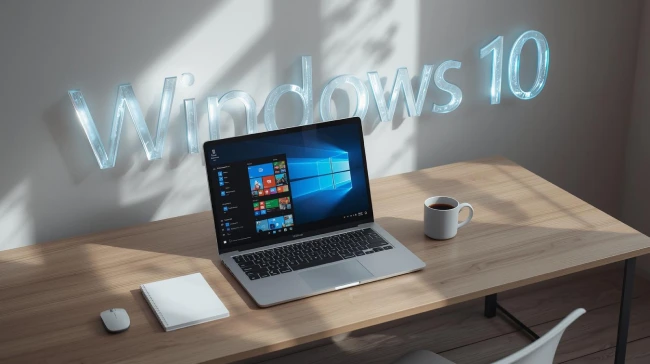
Cara Reset Password Laptop tanpa Install UlangWindows

Last updated: March 10, 2026 11:35 pm
hazdo
Share
SHARE

2. Pilih Menu Troubleshoot

Setelah masuk recovery mode:

Contents
  • 2. Pilih Menu Troubleshoot
  • 3. Akses Drive Sistem Windows
  • 4. Backup File Utilman
  • 5. Ganti Utilman dengan Command Prompt
  • 6. Restart Komputer
  • 7. Buka Command Prompt dari Layar Login
  • 8. Reset Password Windows
  • 9. Login ke Windows
  1. Klik Troubleshoot
  2. Pilih Advanced Options
  3. Klik Command Prompt

Komputer akan membuka jendela Command Prompt.

3. Akses Drive Sistem Windows

Biasanya sistem Windows berada di drive C:.

Ketik perintah berikut:

C:
cd Windows\System32

Tekan Enter setelah setiap perintah.
Baru

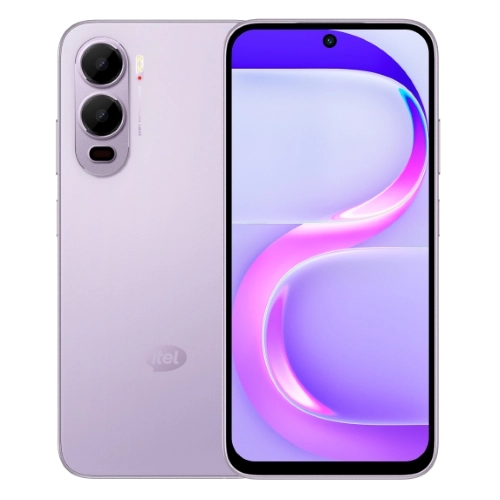
itel City 200

4GB | 128GB

Rp 1.599.000
Beli Sekarang
Baru

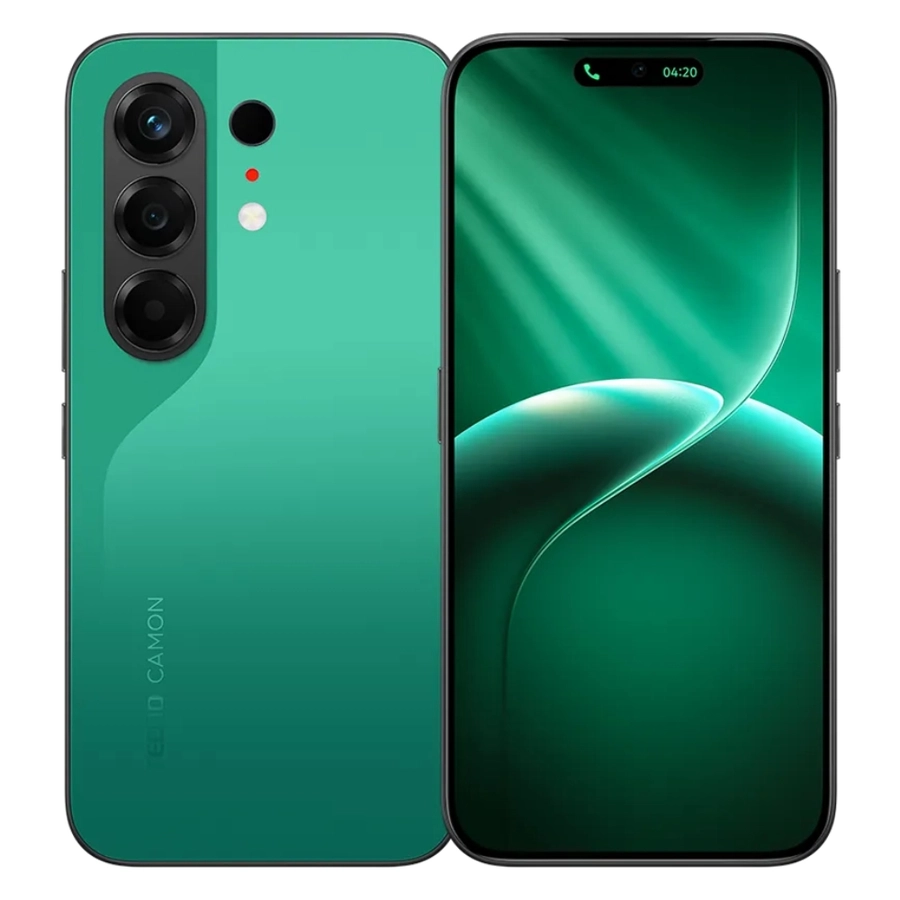
TECNO Camon 50

8GB | 128GB

Rp 3.799.000
Beli Sekarang
Baru

VIVO Y05

4GB | 64GB

Rp 1.899.000
Beli Sekarang
Baru

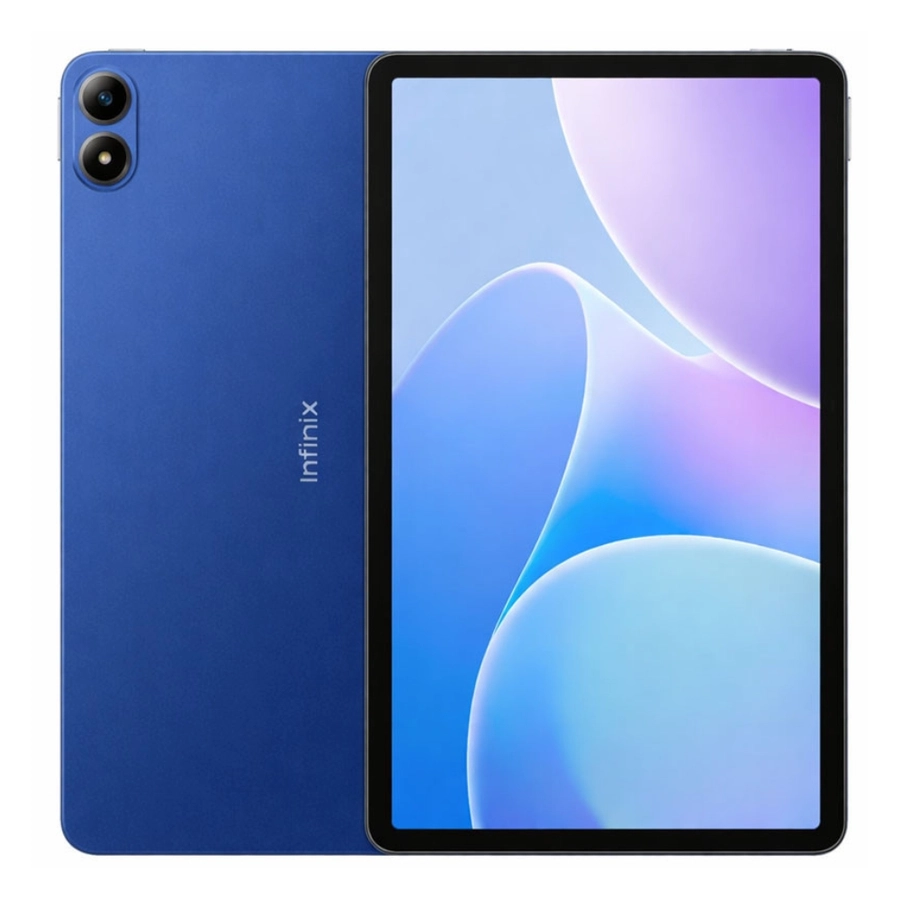
Infinix XPAD 30E

4GB | 128GB

Rp 2.499.000
Beli Sekarang
Baru

Infinix Note 60 Pro 5G

8GB | 256GB

Rp 5.499.000
Beli Sekarang
Baru

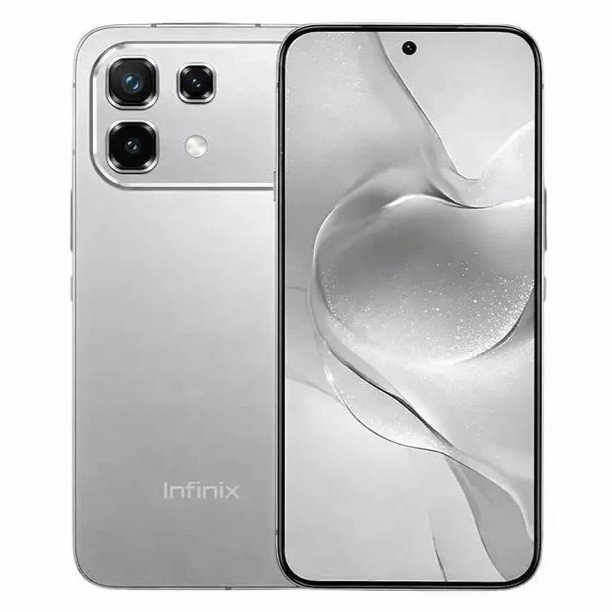
Infinix Note 60

8GB | 256GB

Rp 4.099.000
Beli Sekarang

4. Backup File Utilman

Sekarang kita akan mengganti utilitas aksesibilitas Windows.

Ketik perintah berikut:

ren utilman.exe utilman.exe.bak

Perintah ini akan membuat backup file utilman.

5. Ganti Utilman dengan Command Prompt

Selanjutnya ketik:

copy cmd.exe utilman.exe

Tekan Enter.

Langkah ini membuat tombol Ease of Access di layar login berubah menjadi Command Prompt.

6. Restart Komputer

Sekarang restart komputer dengan mengetik:

shutdown -r -t 0

Komputer akan menyala kembali ke layar login.

7. Buka Command Prompt dari Layar Login

Pada layar login:

  1. Klik ikon Ease of Access
  2. Command Prompt akan terbuka

Sekarang kamu bisa mengganti password.

8. Reset Password Windows

Ketik perintah berikut:

net user

Perintah ini akan menampilkan daftar akun di komputer.

Kemudian reset password dengan:

net user namauser passwordbaru

Contoh:

net user admin 123456

Setelah itu tekan Enter.

Password akun tersebut sekarang sudah berubah.

9. Login ke Windows

Sekarang kamu bisa login menggunakan password baru yang sudah dibuat.

Semua data di komputer tetap aman dan tidak ada yang terhapus.
Previous Page123Next Page
TAGGED:Laptop
Share
Previous Article vivo V70 Resmi Rilis, Ini Spesifikasi dan Harganya
Next Article realme 16 5G Resmi Rilis! Ini Spesifikasi dan Harga Terbarunya

Produk Terlaris

Harga akan menyesuaikan skema promo

KY X55 Earphone

Rp69.800
Rp 130.000 Beli Sekarang

Pencil Stylus

Rp 82.000
Rp 90.000 Beli Sekarang

Powerbank Pro Series

Rp 29.000
Rp 150.000 Beli Sekarang

Keyboard Wireless

Rp 135.000
Rp 250.000 Beli Sekarang

Kabel Data 3 in 1

Rp 29.000
Rp 150.000 Beli Sekarang

Adaptor Charger

Rp 58.000
Rp 90.000 Beli Sekarang

Populer Tag

2025 adsense Affiliate AI Android antivirus Aplikasi Bank baterai bisnis BSI Canva Capcut chatgpt Chrome Clipper cms cpanel cuan DANA desain digital editing video edit video email Emulator excel facebook filmora Fitur font foto gambar game google Google Gemini guru Harga hero HP huawei iklan Infinix instagram IOS iPhone komputer konten Kreator Langganan Laptop Live lynk media sosial meta Mobile Legends Monetisasi motorola one piece online Oppo PayPal PC platform Poco ponsel powerpoint produk Prompt Ramadhan Redmi samsung SEO shopee smartphone Snapdragon sosial media sosmed Spotify tablet TikTok tips tools Video video editing video editor viral virus vivo web Website WhatsApp windows Windows 10 windows10 windows 11 Word wordpress Xiaomi youtube
HAZDOHAZDO
Follow US
© 2026 Hazdo.web.id. All Rights Reserved.
Welcome Back!

Sign in to your account

Username or Email Address
Password

Lost your password?